
Download ALLCapture – Free Screen Recorder for Windows & Mac with Real-Time Video Editing
ALLCapture is a powerful, user-friendly screen recording software designed for creating professional-quality video tutorials, software demos, and real-time screen captures. Whether you're a teacher, trainer, content creator, or remote worker, ALLCapture simplifies the process of recording your screen and editing the output with ease. With built-in tools like audio narration, speech bubbles, spotlight effects, and rubber band highlighting, it transforms basic screen captures into engaging, informative videos.
The software supports both Windows and Mac operating systems and offers a free version with essential features, making it accessible for beginners and advanced users alike. Its intuitive interface ensures quick setup and smooth operation, while the ability to export videos in multiple formats—including executable files—makes sharing and distribution effortless. ALLCapture is a secure, reliable tool that keeps your recordings private and your workflow efficient.
Key Features of ALLCapture – Why It Stands Out
ALLCapture offers a rich set of features that make it one of the most versatile screen recording tools available today. One of its standout capabilities is real-time screen capture with customizable recording areas. Users can select a specific window, region, or the entire screen, ensuring precision when recording complex workflows. The software also supports simultaneous audio recording, allowing you to narrate your screen actions with clear, high-quality voiceovers—perfect for instructional videos or live presentations.
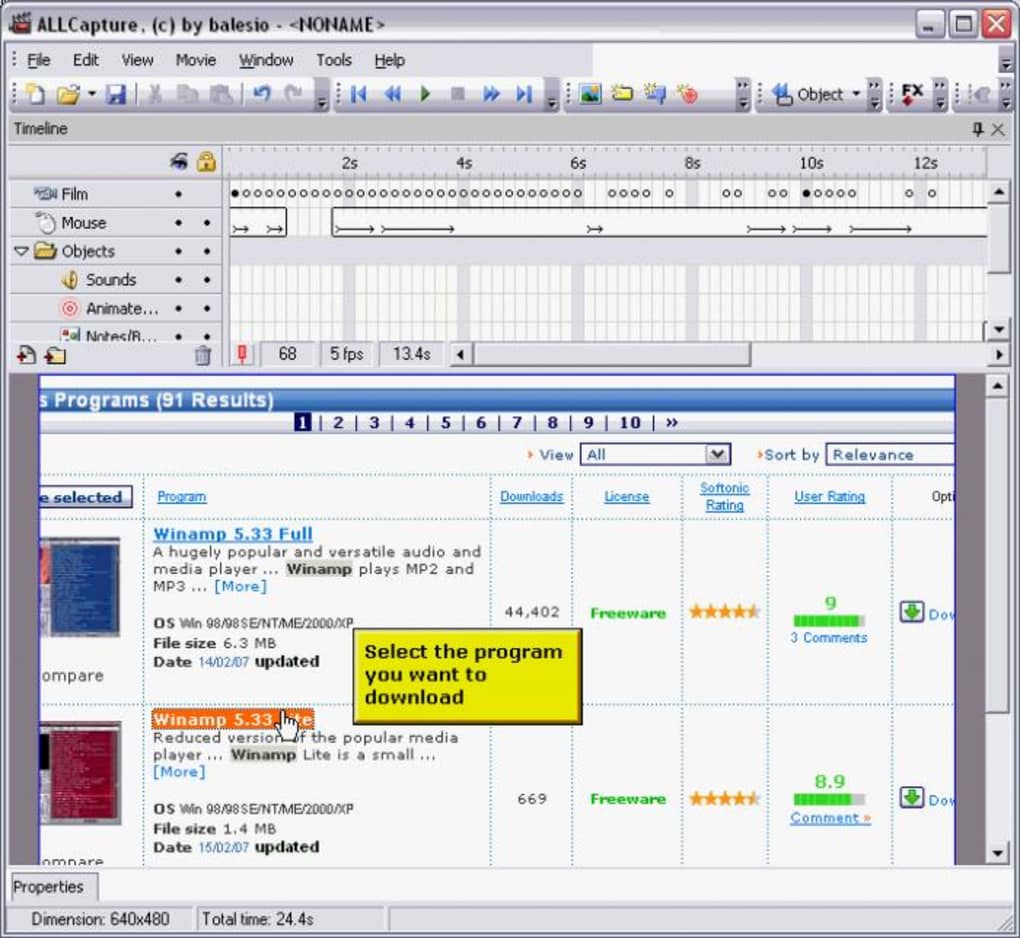
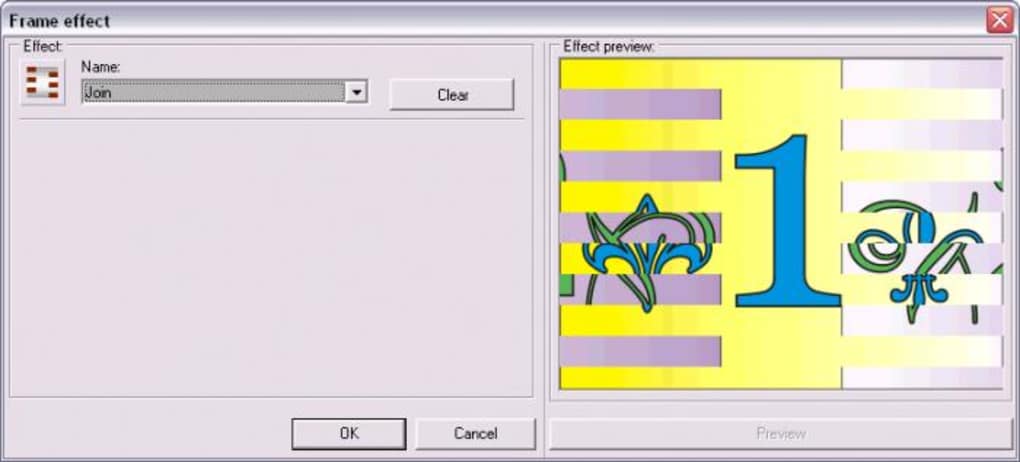
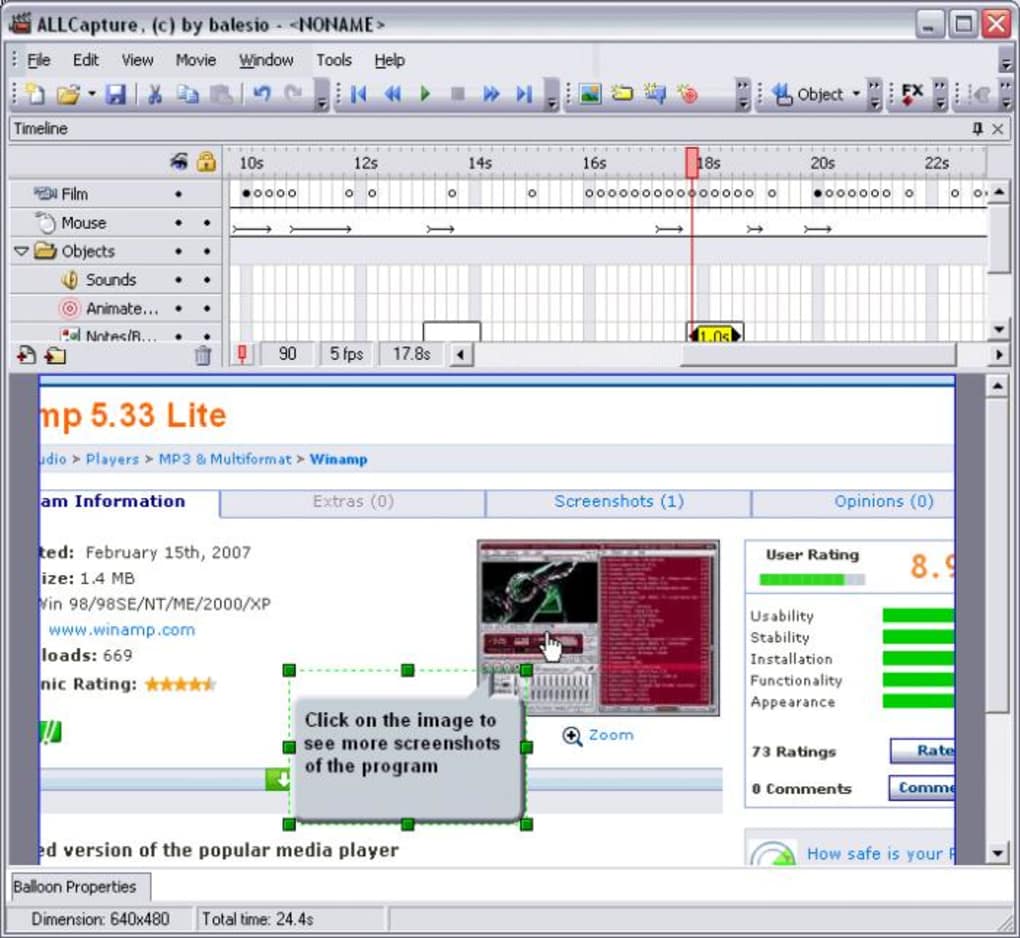
Another major advantage is its built-in video editor, which eliminates the need for external software. After recording, you can trim unwanted segments, rearrange clips, and add transitions with just a few clicks. The inclusion of visual enhancement tools like the Spotlight effect and Rubber Band tool helps draw attention to specific areas of the screen, making your content more engaging and easier to follow. For educational purposes, the speech bubble and digital note features allow you to annotate key points directly on the video, enhancing clarity and comprehension.
ALLCapture also supports export in multiple formats, including standard video files (MP4, AVI) and standalone executable (.exe) files, which can be shared without requiring the recipient to install any software. This is particularly useful for distributing tutorials to clients or colleagues who may not have compatible media players. The software is lightweight, fast, and updates regularly to ensure compatibility with the latest OS versions and security patches. Whether you're recording a quick demo or producing a full-length tutorial, ALLCapture delivers professional results with minimal effort.
How to Install and Use ALLCapture – Step-by-Step Guide
Getting started with ALLCapture is straightforward and requires no technical expertise. First, visit the official website and download the installer for your operating system—either Windows or Mac. The download is free and secure, with no bundled adware or malware. Once downloaded, run the installer and follow the on-screen prompts to complete the setup. The process typically takes less than two minutes and requires minimal disk space.
After installation, launch the app. The main interface is clean and intuitive, featuring a central recording button and options to select your recording area, audio source, and output settings. Click the “Record” button to begin capturing your screen. You can choose to record the full screen, a specific window, or a custom region. During recording, a small overlay displays the timer and recording status, so you can monitor progress without distraction.
When you're done, stop the recording. ALLCapture automatically opens the video in its built-in editor. Here, you can trim clips, add speech bubbles, apply spotlight effects, or insert background music.
To enhance your video further, use the annotation tools to highlight important elements with arrows, shapes, or text. Once satisfied, click “Export” and choose your preferred format. The software supports MP4, AVI, and executable formats, with options to adjust resolution, frame rate, and quality.
Exporting is fast, and the final file is ready for sharing via email, cloud storage, or social media.
Compatibility and System Requirements
ALLCapture is compatible with a wide range of devices and operating systems, making it a versatile choice for users across platforms. It supports Windows 10 and 11 (both 64-bit and 32-bit versions) and macOS 10.14 (Mojave) and later, including Apple Silicon (M1/M2) Macs. This ensures smooth performance on both older and newer hardware, from budget laptops to high-end workstations.
The software is lightweight, with a minimal system footprint. It requires at least 2 GB of RAM and 500 MB of free disk space, which makes it ideal for users with limited resources. It also runs efficiently on devices with integrated graphics, so you won’t experience lag during recording or editing. ALLCapture uses modern APIs to access screen capture and audio input, ensuring compatibility with the latest applications and browsers.
For users who frequently switch between devices, ALLCapture offers a consistent experience across platforms. The interface and feature set remain the same, so you can record on your Windows desktop and edit on your Mac without learning a new workflow. Regular updates are released to fix bugs, improve performance, and add new features, ensuring long-term usability. The software is also secure, with no data collection or remote tracking, so your recordings remain private and confidential.
Pros and Cons of ALLCapture – Honest Review
- Pros:
- Free to download and use with essential features
- Intuitive interface suitable for beginners and experts
- Real-time screen recording with customizable capture areas
- Integrated video editor with trimming, annotations, and effects
- Supports audio narration and background music
- Export in MP4, AVI, and executable formats
- Lightweight and fast performance on low-end systems
- Regular updates and strong security
- Cons:
- Limited video format support compared to professional tools
- No built-in cloud storage or collaboration features
- Advanced editing features are somewhat basic compared to full video suites
- Executable export may result in larger file sizes
- Occasional lag on very high-resolution displays
Frequently Asked Questions (FAQ)
- Is ALLCapture free to download and use?
Yes. ALLCapture offers a fully functional free version with no time limits. You can record, edit, and export videos without paying. While there may be premium features in future versions, the current free edition covers most use cases for educators, trainers, and casual users.
- Can I record audio while capturing my screen?
Yes. ALLCapture allows you to record system audio, microphone input, or both simultaneously. This is ideal for adding voiceover explanations during tutorials or live demonstrations. Audio quality is clear and well-synchronized with the video.
- What file formats does ALLCapture support for export?
ALLCapture supports MP4, AVI, and executable (.exe) formats. The .exe export is especially useful for sharing videos with users who don’t have media players installed. However, it does not support formats like MOV or WebM in the free version.
- Is ALLCapture compatible with Mac and Windows?
Yes. The software is available for both Windows 10/11 and macOS 10.14 and later, including Apple Silicon Macs. The interface and functionality are consistent across platforms.
- Can I edit my recordings after capturing them?
Yes. ALLCapture includes a built-in video editor that lets you trim clips, reorder scenes, add speech bubbles, apply spotlight effects, and insert background music—all without leaving the app.
Final Verdict: Why You Should Download ALLCapture Today
ALLCapture is a standout choice for anyone looking to create high-quality screen recordings and video tutorials without the complexity of professional video editing software. Its blend of ease of use, powerful editing tools, and secure, free access makes it ideal for educators, remote teams, content creators, and IT professionals. Whether you're recording a step-by-step guide, a software demo, or a quick tutorial, ALLCapture delivers polished results with minimal effort.
While it may lack some advanced features found in full-featured video suites, its core functionality is robust and well-optimized. The ability to export as an executable file is a unique advantage, especially for sharing content with non-technical users. With regular updates, strong compatibility, and a user-friendly design, ALLCapture continues to evolve as a reliable tool for modern digital communication.
Ready to create your first professional video tutorial? Download ALLCapture now and start recording your screen in real time—free, secure, and hassle-free.







